

If you’ve ever built a model-driven app in Power Apps, you’ve probably battled with slow-loading command bar buttons. You click a table, and for 3… 5… sometimes 10 seconds, your button just refuses to appear.
For ages, I kept asking:
Why are my buttons taking so long to show up, even when my formula is simple?
This blog is the answer I wish I had earlier, and the pattern that finally solved the performance problem completely.
The Root Problem: Visibility Rules Are Slow
Model-driven command bar visibility conditions run server-side, and every time the grid refreshes or a row is selected, the system must:
- Query Dataverse
- Apply your filter logic
- Decide whether the button should show
If your logic includes things like:
CountRows(Filter('MyTable', Condition)) > 0
…Dataverse has to scan the dataset every time.
This causes the infamous button delay.
The Big Realization
After testing everything, CountRows(), IsEmpty(), rollup fields, calculated fields the truth became clear:
The fastest command bar button is the one that is ALWAYS visible.
The logic belongs INSIDE the button, not around it.
This single shift changed everything.
The Best Pattern: Always Show the Button
Instead of hiding buttons based on conditions.
- always show the button,
- then block the action inside when conditions aren’t met.
This turns your slow visibility checks into fast, click-time validation
Important Exception / Clarification
If your visibility rule is purely status-based — for example:
- Only show the button when
Status = Draft
…that is usually fine, because it’s just reading a field on the selected row.
But the moment your visibility logic checks a related table (e.g., items, lines, approvals):
- CountRows of related items
- Filter on child records
- Checking if related records exist
…your button will always load slowly.
So:
Use visibility rules ONLY for simple status checks.
Never use them for related-table logic.
Otherwise the delay is guaranteed.
This is the nuance most people miss.
Example Scenario
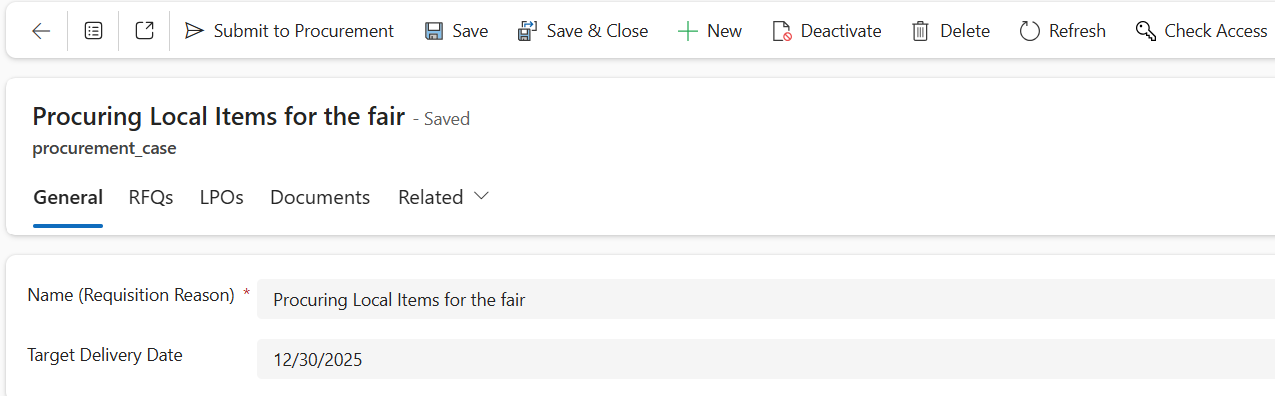
In my procurement app:
- You can’t submit if there are no procurement items
- You can’t submit if the case is already submitted
- But the button must always be visible (for UX consistency)
This is the perfect case for action-level validation.
If( // Already submitted? Self.Selected.Item.'Status (statuscode)' = 'Status (procurement_cases)_1'.Submitted, Confirm( "This procurement case has already been submitted.", { Title: "Already Submitted", ConfirmButton: "OK" } ),
// No procurement items? IsEmpty( Filter( 'Procurement Items', procurement_case = Self.Selected.Item.procurement_case ) ), Confirm( "You cannot submit because this procurement case has no items.", { Title: "No Items", ConfirmButton: "OK" } ),
// Otherwise proceed If( Confirm( "Are you sure you want to submit this procurement case?", { Title: "Submit Procurement Case", ConfirmButton: "Yes", CancelButton: "No" } ), Patch( 'Procurement Cases', Self.Selected.Item, { 'Status (statuscode)': 'Status (procurement_cases)_1'.Submitted } ); Notify( "Procurement case successfully submitted.", NotificationType.Success, 6000 ), Notify( "Submission cancelled.", NotificationType.Warning, 5000 ) ))
his pattern gives you:
-
Instant button loading
Visibility logic is gone.
-
Clear user feedback
Instead of disappearing buttons, the user gets confirmations and warnings.
-
Reliable validation
You prevent invalid actions even if data changes while the form is open.
-
Cleaner UX
Buttons don’t jump around or appear late.
Why Not Use Rollup Fields?
Rollup fields are useful but update on a delay (5–30 seconds typically).
So, if you need real-time validation, use in-formula checks instead.
If your command bar buttons are taking forever to load, the problem isn’t your app; it’s the pattern.
Switching to "always visible, validate inside" is a game-changer:
- No more slow buttons
- No more confusing UX
- No more Dataverse lag
This pattern now lives in every model-driven app I build and it simply works.