

Restoring a database is a fundamental task for SQL Server administrators and developers. Whether you're setting up a development environment, recovering from data loss, or migrating data between servers, understanding the restore process is essential. In this guide, we'll walk through restoring the AdventureWorks database, a popular sample database from Microsoft.
Prerequisites
Before you begin, ensure you have:
- SQL Server Management Studio (SSMS) installed
- The AdventureWorks backup file (.bak) downloaded from Microsoft's GitHub repository
- Appropriate permissions to restore databases on your SQL Server instance
Step-by-Step Restoration Process
Step 1. Open SQL Server Management Studio
Launch SSMS and connect to your SQL Server instance using your credentials.
Step 2. Access the Restore Database Dialog
In Object Explorer, right-click on the **Databases** folder and select **Restore Database** from the context menu. This opens the Restore Database dialog box.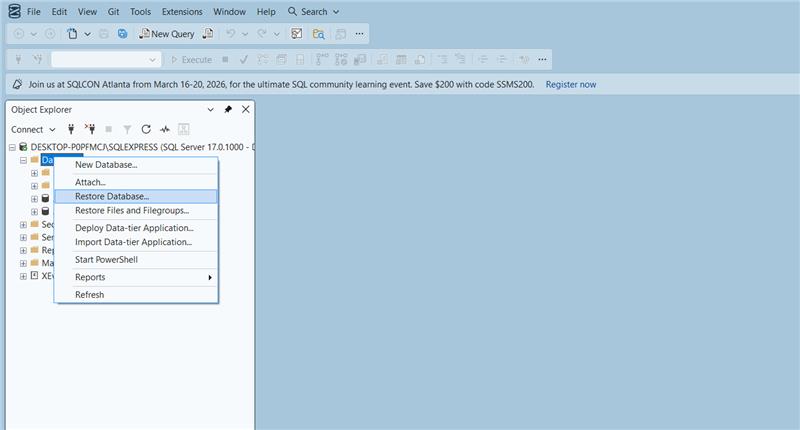
Step 3. Select the Backup Source
In the Restore Database window, you have two options for specifying the backup source:
- **Database**: Choose this if restoring from a recent backup that SQL Server is tracking
- **Device**: Select this option to browse for your AdventureWorks .bak file
For our example, choose **Device** and click the browse button (**...**) to locate your backup file.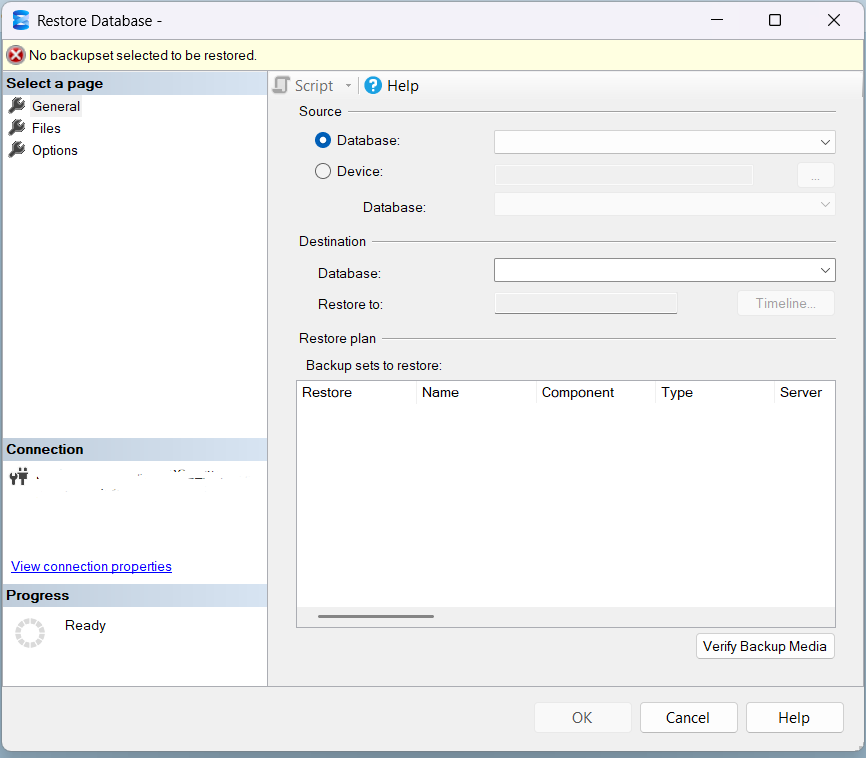
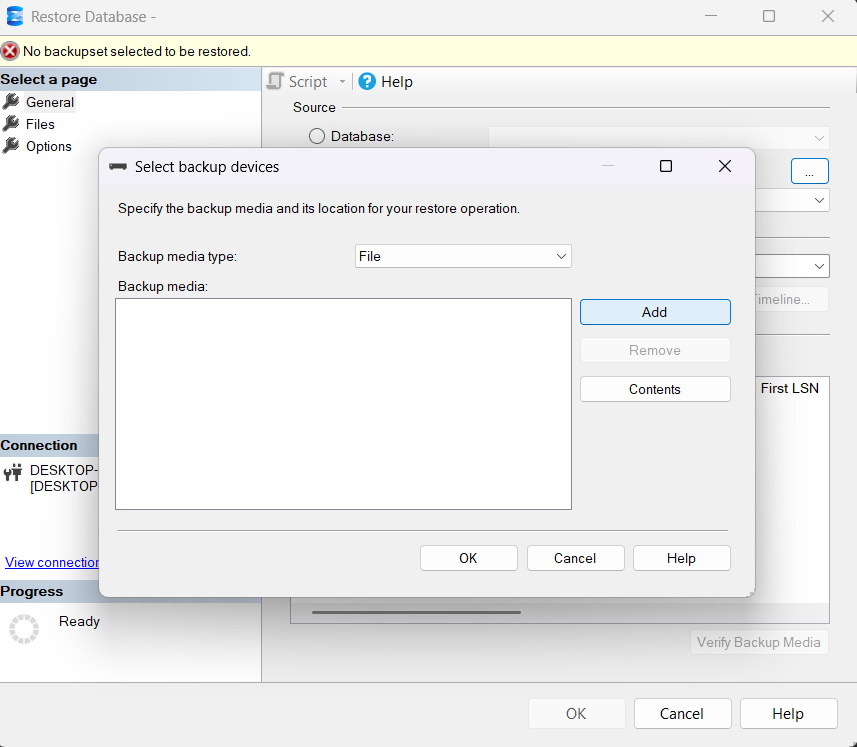
Step 4. Add the Backup File
In the Select backup devices window, click **Add** and navigate to where you saved the AdventureWorks backup file. Select the .bak file and click **OK**.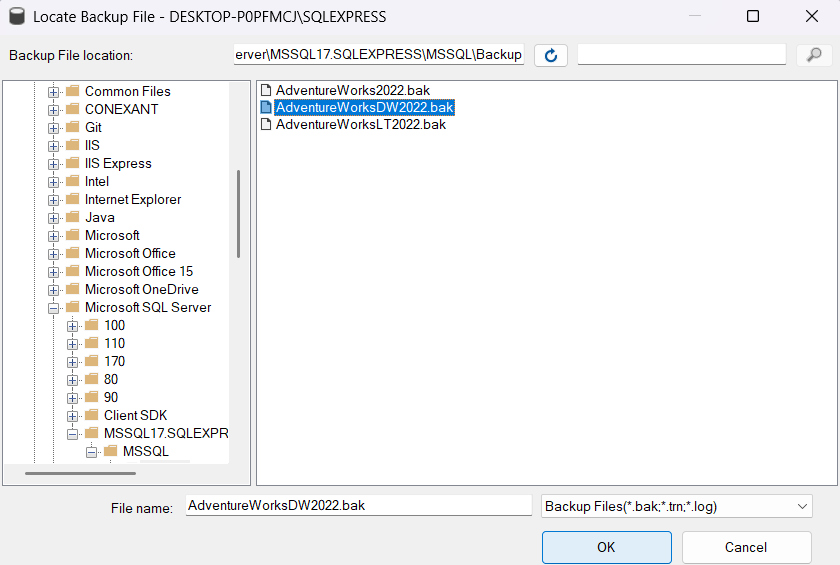
Step 5. Configure Restore Options
Back in the Restore Database dialog, SQL Server automatically populates the database name. You can keep "AdventureWorks" or rename it if needed.
Under the **Files** page (left sidebar), verify the file paths where the database files will be restored. By default, SQL Server uses its data directory, but you can modify these paths if necessary.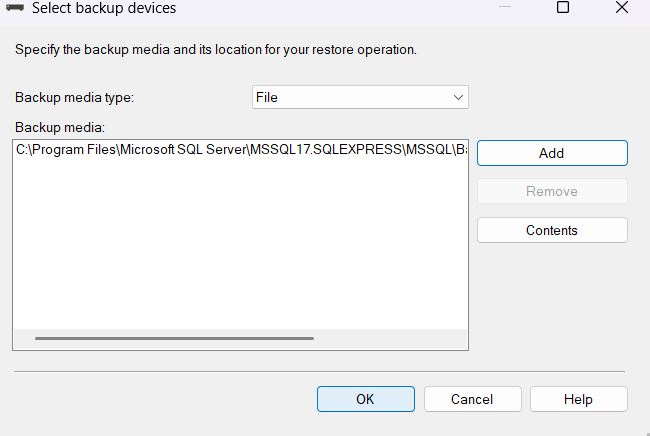
Step 6. Handle Existing Databases (If Applicable)
If you're restoring over an existing database, navigate to the Options page and check Overwrite the existing database (WITH REPLACE). This is particularly useful when refreshing a development database with updated data.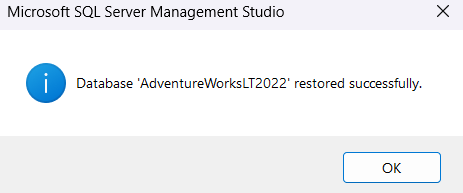
Step 7. Execute the Restore
Once all settings are configured, click OK to begin the restoration process. SQL Server will display a progress bar, and upon successful completion, you'll see a confirmation message.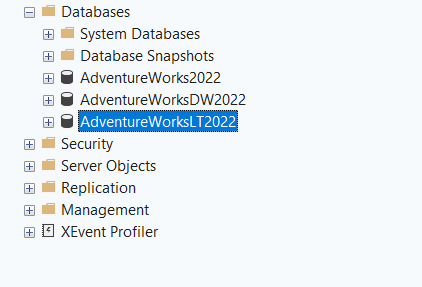
Restoring via T-SQL
For those who prefer scripting or need to automate the process, here's the T-SQL equivalent:
```sql
USE master;
GO
RESTORE DATABASE AdventureWorks
FROM DISK = 'C:\Backups\AdventureWorks.bak'
WITH MOVE 'AdventureWorks_Data' TO 'C:\Program Files\Microsoft SQL Server\MSSQL15.MSSQLSERVER\MSSQL\DATA\AdventureWorks.mdf',
MOVE 'AdventureWorks_Log' TO 'C:\Program Files\Microsoft SQL Server\MSSQL15.MSSQLSERVER\MSSQL\DATA\AdventureWorks.ldf',
REPLACE;
GO
```
Make sure to adjust the file paths to match your environment and the logical names of the database files.
Verifying the Restoration
After restoration completes, expand the Databases folder in Object Explorer to confirm that AdventureWorks appears in the list. You can run a simple query to verify the data:
```sql
USE AdventureWorks;
SELECT COUNT(*) FROM Sales.Customer;
```
If the query returns results, your database has been successfully restored and is ready for use.
Common Issues and Solutions
Issue: "The database is in use" error
Solution: Ensure no active connections exist to the database. You can close connections using the SSMS or add `WITH REPLACE, STATS = 10` to your restore command.
Issue: Permission denied
Solution: Verify that your SQL Server service account has read permissions on the backup file location and write permissions on the destination folders.
Issue: Incorrect file paths
Solution: Use the `RESTORE FILELISTONLY` command to view the logical file names in your backup before attempting the restore.
Conclusion
Restoring a database in SQL Server is a straightforward process once you understand the steps involved. Whether using the graphical interface in SSMS or T-SQL scripts, the AdventureWorks database serves as an excellent example for practicing this essential skill. With these techniques mastered, you'll be well-equipped to handle database restorations in various scenarios.