


CALCULATE is the most important function in DAX.
If you truly understand CALCULATE, you understand how Power BI thinks.
It allows you to control filters, override slicers, ignore visuals, and apply business rules correctly. Almost every advanced Power BI measure relies on CALCULATE in one way or another.
In this article, we will explore CALCULATE in depth and clearly explain how filter modification works using:
• ALL
• ALLEXCEPT
• REMOVEFILTERS
• KEEPFILTERS
Everything is explained step by step, using simple language and real business examples.
What Is CALCULATE in DAX?
CALCULATE evaluates an expression after modifying the filter context.
In simple terms:
CALCULATE changes which rows are visible before doing the calculation.
Basic Syntax
CALCULATE ( <expression>, <filter1>, <filter2>, ... )
Expression – what you want to calculate
Filters – rules that change which data is included
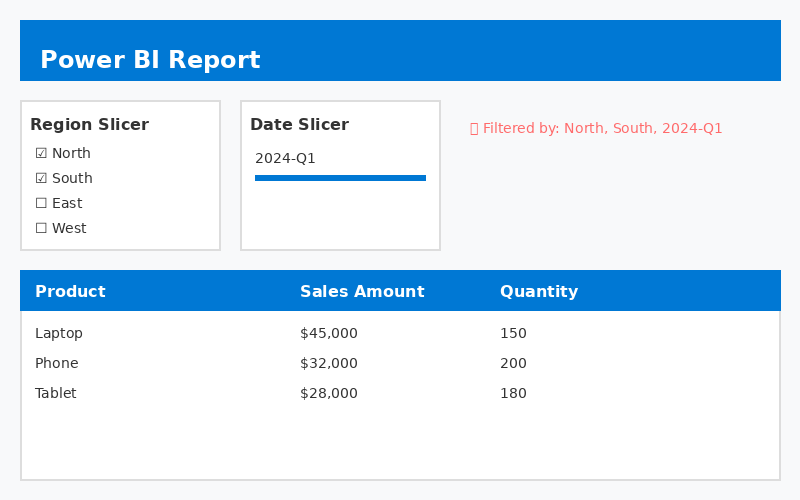
Understanding Filter Context
Filter context is created by:
• Slicers
• Filters pane
• Rows and columns in visuals
• Page and report filters
CALCULATE allows you to change or override this context.
CALCULATE Example
Base measure:
Total Sales = SUM (Sales [Sales Amount])
Now calculate sales for Online orders only:
Online Sales = CALCULATE ([Total Sales], Sales [Channel] = "Online")
CALCULATE applies the filter first, then evaluates the measure.
How CALCULATE Modifies Filters
CALCULATE can:
• Add filters
• Replace existing filters
• Remove filters
• Preserve existing filters
This is where filter functions become powerful.
Using ALL – Removing Filters Completely
What ALL Does
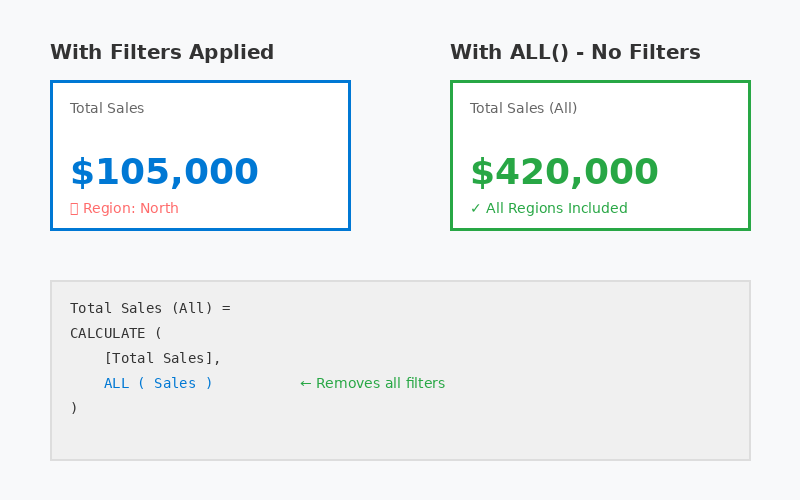
ALL removes all filters from a table or column.
It is commonly used for:
• Grand totals
• Percentage of total calculations
• Measures that must ignore slicers
Example
Total Sales (All) = CALCULATE ( [Total Sales], ALL ( Sales ))
ALL in Percentage Calculations
Sales % of Total = DIVIDE ( [Total Sales], CALCULATE ( [Total Sales], ALL (Sales ) ) )
This compares filtered results against the grand total.
Using ALLEXCEPT – Keep One Filter, Remove the Rest
What ALLEXCEPT Does
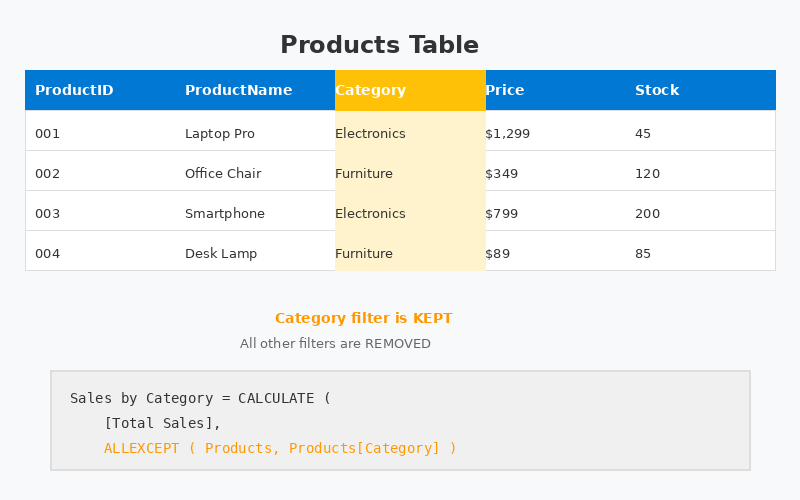
ALLEXCEPT removes all filters except the ones you specify.
This is useful when you want totals that still respect grouping.
Example
Sales by Category = CALCULATE ([Total Sales], ALLEXCEPT (Products, Products [Category]))
Using REMOVEFILTERS – A Clearer Way to Remove Filters
What REMOVEFILTERS Does
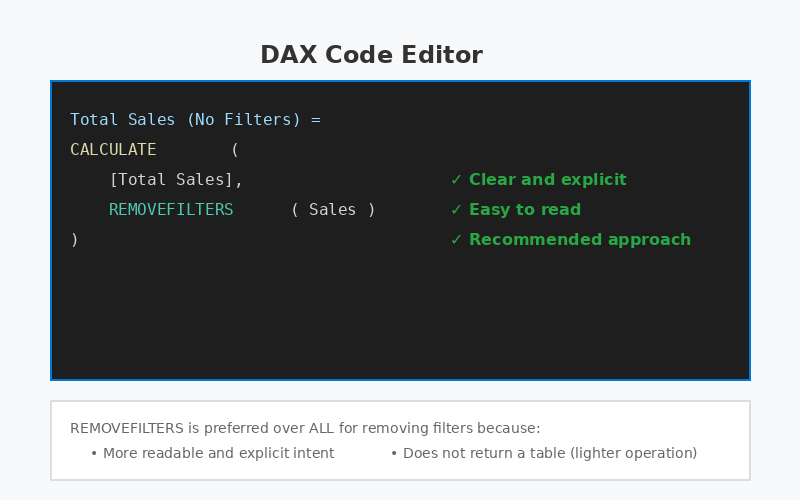
REMOVEFILTERS explicitly removes filters without returning a table.
It is preferred because:
• It is easier to read
• It clearly communicates intent
Example
Total Sales (No Filters) = CALCULATE ([Total Sales], REMOVEFILTERS (Sales))
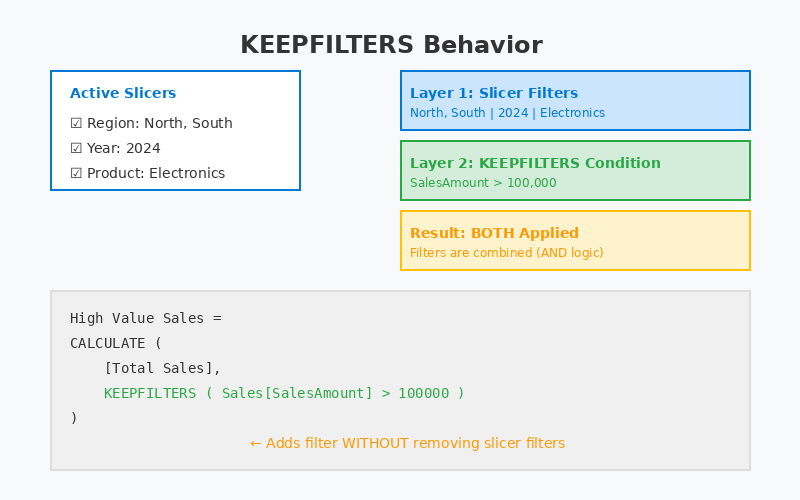
Using KEEPFILTERS – Respect Existing Filters
What KEEPFILTERS Does
By default, CALCULATE replaces filters.
KEEPFILTERS tells Power BI:
"Add this filter without removing existing ones."
Example
High Value Sales = CALCULATE ([Total Sales], KEEPFILTERS (Sales [SalesAmount] > 100000))
Comparison of Filter Modification Functions
| Function | Purpose | When to Use | Common Use Cases |
| ALL | Removes all filters from specified table/column | Need grand totals or percentage calculations | % of total sales, grand total row, YoY comparisons |
| ALLEXCEPT | Removes all filters except specified columns | Need totals within a group (category, region, etc.) | Ranking within category, % of category total |
| REMOVEFILTERS | Explicitly removes filters (modern syntax) | Same as ALL, but clearer and preferred | Any scenario where ALL would work - use this instead |
| KEEPFILTERS | Adds filter without replacing existing ones | Want to add conditions while respecting slicers | Conditional measures, filtered KPIs with user filters intact |
Conclusion
CALCULATE is the core of powerful DAX analysis because it gives you control over filter context. By understanding how to use ALL, ALLEXCEPT, REMOVEFILTERS, and KEEPFILTERS, you can shape how data is evaluated, build more accurate measures, and create meaningful business insights.