

PowerApps Bulk Update SharePoint List with IDs
When building apps in PowerApps, it’s tempting to store only the name of an item (like Access Item Name) instead of its unique ID. It works at first, but quickly creates long-term problems:
If you’ve ever built a model-driven app in Power Apps, you’ve probably battled with slow-loading command bar buttons. You click a table, and for 3… 5… sometimes 10 seconds, your button just refuses to appear.
For ages, I kept asking:
Why are my buttons taking so long to show up, even when my formula is simple?
This blog is the answer I wish I had earlier, and the pattern that finally solved the performance problem completely.
When building apps in PowerApps, it’s tempting to store only the name of an item (like Access Item Name) instead of its unique ID. It works at first, but quickly creates long-term problems:
As someone deeply experienced with Power Automate, I’ve built workflows that handle business-critical processes, streamline internal operations, and integrate seamlessly across Microsoft’s ecosystem. For years, Power Automate has been my go-to tool for one simple reason: it just works especially if your organization runs on Microsoft 365, SharePoint, Teams, and Dynamics.
But like any tool, Power Automate comes with limitations.
And that’s when I started exploring n8n, an open-source alternative that approaches automation from a fundamentally different angle.
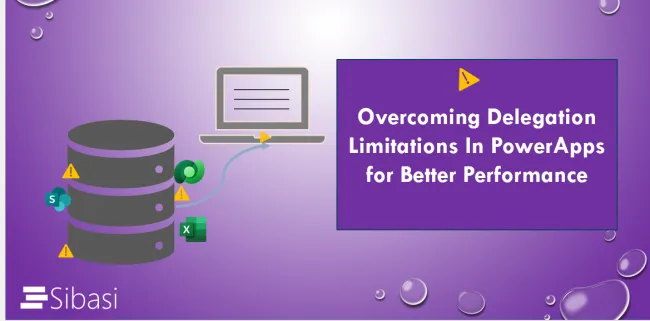
One key thing every PowerApps maker must know is delegation—especially if you're aiming to build apps that are smooth, scalable, and offer the best possible experience to your users.
It’s not very nice when users log into an app and can’t load all the data they expect. They might be scrolling, filtering, or searching for a record that simply isn’t there—not because it doesn’t exist, but because PowerApps decided not to fetch it due to how your formula is written.
Whatever you do, please don’t ignore the delegation warning.
Admins can create, modify, and manage workflows to match their organization’s approval processes. Each workflow consists of multiple stages, where different approvers take action.
Have you ever felt frustrated by slow approval processes, endless email chains, and missing documents? You're not alone! Many organizations struggle with inefficiencies in their approval workflows, whether it's procurement requests, expense approvals, contract sign-offs, or internal compliance.
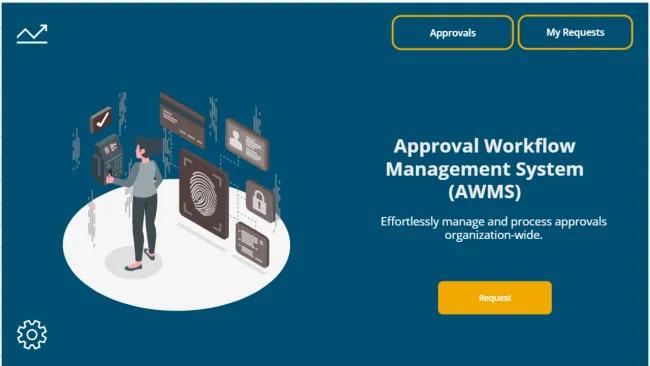
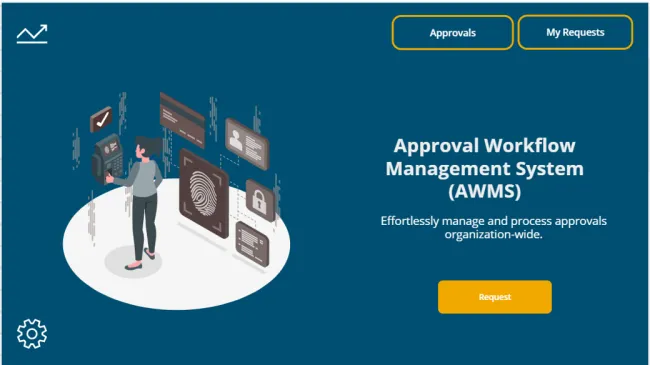
AWMS (Approval Workflow Management System) is a comprehensive solution designed to streamline your organization’s approval processes.
Streamline your organization’s approval processes with AWMS, a versatile solution built on PowerApps, Power Automate, and SharePoint. Whether you're managing expense approvals, purchase requests, or project workflows, AWMS enhances collaboration, transparency, and efficiency.
If you’re one of those developers who manually exports and imports solutions, dealing with dependencies that waste time, and constantly re-exporting after every tiny update, it's time to rethink your approach. Imagine making a small change and being able to deploy it live to a test environment while your users continue testing without interruptions.
Sometimes in Power Automate, you may encounter scenarios where you need to use the "Parse JSON" action to process JSON data. A critical aspect of using Power Automate effectively is ensuring that your data is correctly parsed and processed. This is where JSON schemas come into play. However, handling null values in JSON can be tricky and, if not done correctly, can lead to errors in your workflows. In this blog, we will explore how to handle null values in JSON schema for Power Automate.
Common Issues with JSON Schemas